
How it work's
Get started with your favorite platform in minutes. Simple, powerful, and designed for everyone.

Easy Setup on WordPress
Follow these simple steps to connect your WordPress site:
Add User
Go to your WordPress Admin Dashboard → Users → Add New, and create or select the user who will manage the integration.
Grant Upload Permission
Ensure the user has the Author or Administrator role to upload posts and media.
Generate Application Password
Navigate to Users → Profile → Application Passwords and create a new password. Copy it → you'll need it for authentication.
Enter Site Details
In our plugin, enter your WordPress site URL, username, and the application password you created.
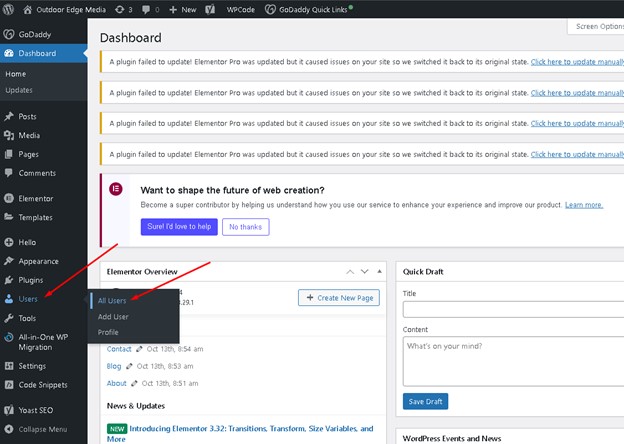
Our plugin works seamlessly with any WordPress theme and includes a drag-and-drop interface for easy customization — no coding required.

Easy Setup on Shopify
Follow these quick steps to connect your Shopify store:
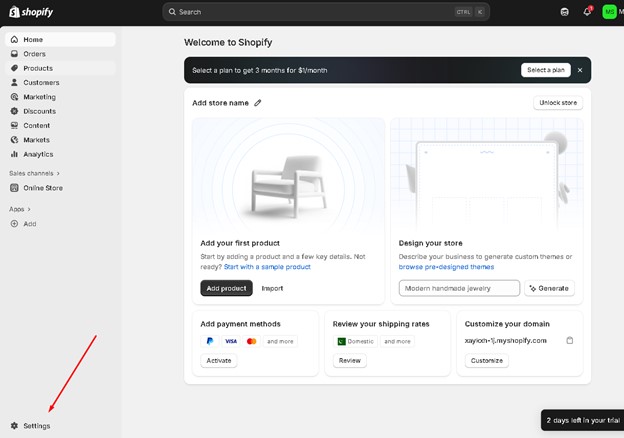
Our plugin works seamlessly with any Shopify theme and includes a drag-and-drop interface for easy customization — no coding required.
Go to Settings
In your Shopify Admin Dashboard, click Settings → Apps and Sales Channels.
Open Developer Tools
Scroll down and select Develop Apps for Your Store. (If it’s your first time, enable developer access.)
Create a New App
Click Create an App, name it, and assign a developer or admin
Add App Details
Enter the app name, developer email, and any optional description.
Configure Admin API Scopes
- Read/Write Products
- Read Orders
- Manage Content
Save and Install
Click Save and then Install App to generate API credentials.
Copy API Keys
- Admin API Access Token
- API Key and Secret Key
Enter Details in Plugin
Paste your Shopify Domain, API Key, and Secret Key into the plugin’s setup fields.
Connect & Verify
Click Continue to verify the connection.
Once verified, your Shopify store is successfully linked!

Easy Setup on Webflow
Follow these quick steps to connect your Webflow:
Publish to domain
Open Dashboard of webflow and name your project then create new collection.Then go to rich text settings and select 'content'.
Enabling API Access
Go to site settings,then app & integration then api access,then give access
QueryFuel
Go to query fuel article,Click upload article,then weblfow.
Integration API
Add your API Key
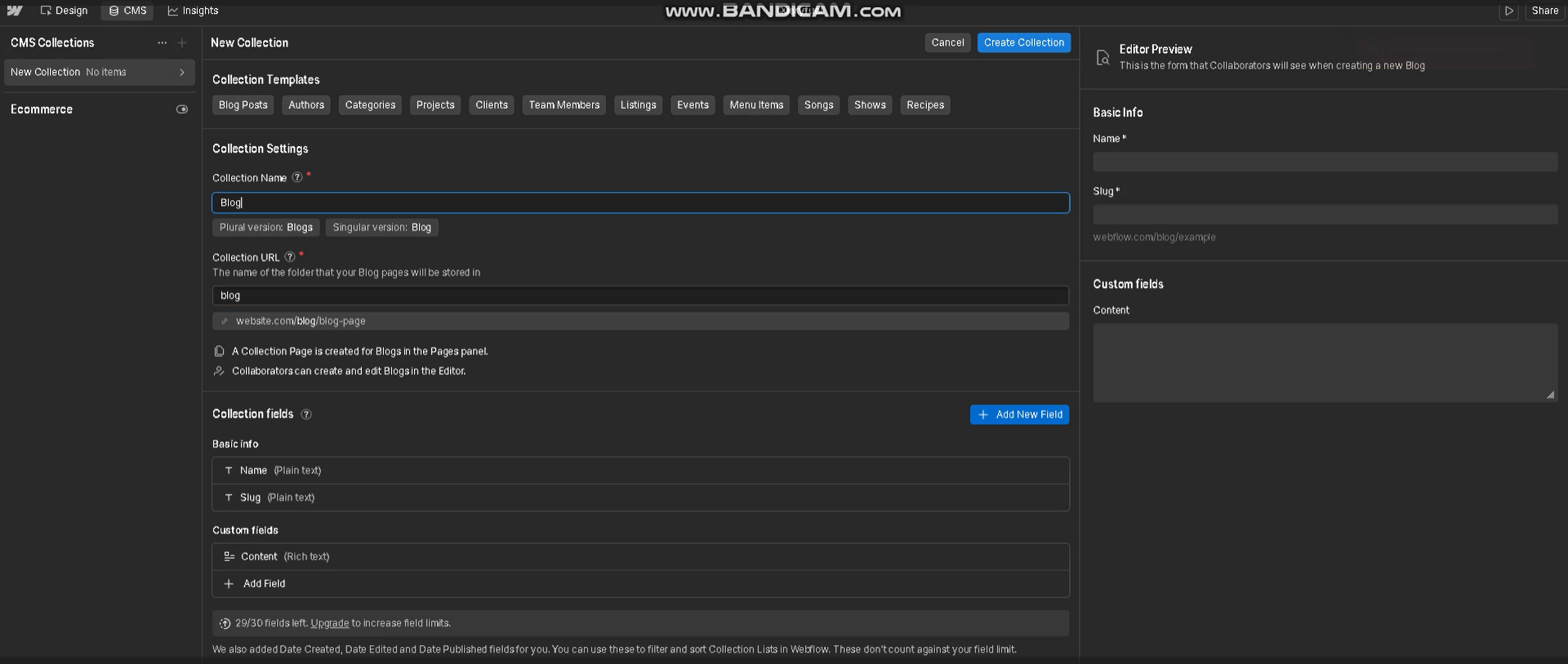
Our plugin works seamlessly with any Webflow theme and includes a drag-and-drop interface for easy customization — no coding required.
Our Key Feature make
you stress free
Lorem ipsum dolor sit amet, consectetur adipiscing elit, sed do eiusmod tempor incididunt ut labore et dolore magna aliqua.

Lorem ipsum dolor sit amet, consectetur adipiscing elit, sed do eiusmod tempor incididunt ut labore et dolore magna aliqua.
Lorem ipsum dolor sit amet, consectetur adipiscing elit, sed do eiusmod tempor incididunt ut labore et dolore magna aliqua.
Let's Start Your
Journey With us!
Upload a webinar or podcast, or answer a quick voice/text interview. Our AI transforms your expertise into professional articles with Images, audio, and multiple export formats.
 Create My First Article